


SRA3 Paper Size: The Professional Guide to Dimensions and Business Printing
Why does an A3 document sometimes come off the copier with a white border, even when the design runs to the edge? The answer may be the paper, not the artwork. The sra3 paper size is 320 × 450mm, giving you extra space around a finished A3 design for trimming.
If you’ve been frustrated by unexpected borders, confusing tray settings or sheets wasted on the wrong selection, you’re not alone. SRA3 gives you room to print beyond the final edge, then trim the sheet to A3 for a clean finish. In this guide, you’ll learn the dimensions, how full-bleed printing works and what to check before loading SRA3 into your multifunctional copier.
We’ll also explain why A3 compatibility doesn’t always mean SRA3 compatibility, and how to check your machine and paper settings before printing. The Ineo+ 450i, for example, supports SRA3, making it an option for businesses looking to produce selected marketing materials in-house. Check your own copier’s specifications before choosing paper or planning a print job.
Table of Contents
What is SRA3 Paper Size? Understanding the Supplementary Raw Format
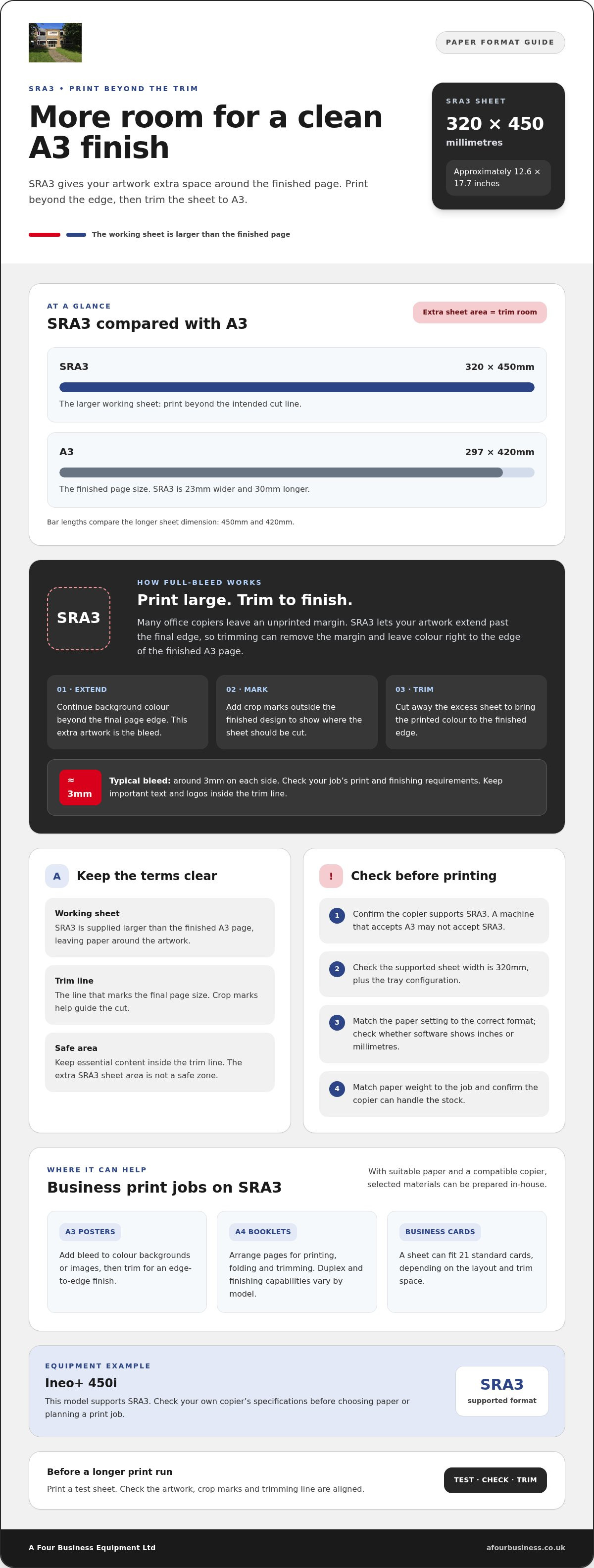
SRA3 stands for Supplementary Raw Format A3. “Raw” means the sheet is supplied larger than the finished A3 page, leaving extra paper around the artwork. That space allows the sheet to be printed and then trimmed to its final size. In practical terms, SRA3 is the working sheet, whilst A3 can be the finished document.
This is why the sra3 paper size is widely used in professional printing workflows. You can print colour beyond the edges of the intended page, then cut away the excess for a clean finish. The format is useful for business documents and marketing materials where a white border would affect the design.
SRA3 Dimensions in Millimetres and Inches
An SRA3 sheet measures 320 × 450mm, or approximately 12.6 × 17.7 inches. A standard A3 sheet measures 297 × 420mm, so SRA3 is 23mm wider and 30mm longer. That extra area leaves room for printing beyond the trim line and for handling the sheet. If you’re choosing a paper setting in older software, check whether it lists dimensions in inches or millimetres to avoid selecting the wrong format.
The Origin of the SRA Standard
ISO 216 defines the familiar A-series sheet sizes, including A3. ISO 217 covers RA and SRA untrimmed formats, which are larger than their corresponding A-series sizes and intended to be trimmed down. You can read more about these international paper size standards and how the series relate to one another.
RA and SRA are both part of the standard; it would be misleading to say that SRA simply replaced RA. SRA3 is a format used in professional digital printing because its dimensions leave space for bleed and finishing around an A3 design. The same need for extra sheet area applies across print methods, from traditional litho work to multifunctional copiers. The equipment has changed, but the principle is straightforward: print on a larger sheet, then trim it to the finished size.
Before selecting SRA3 paper, check that your copier supports a 320mm sheet width. A machine that accepts A3 may not accept SRA3. Checking the specification and tray configuration first helps you avoid loading incompatible paper.
Why Businesses Use SRA3: The Secret to Full-Bleed Printing
Print an A3 design on A3 paper and you may see a narrow white edge, even if the artwork appears to reach the page boundary. Many office copiers leave an unprinted margin because the sheet needs to travel through rollers and guides. The result can be a border that wasn’t part of your design.
For a full-bleed finish, print the artwork on a larger sheet, with the background colour extending beyond the intended cut line. The extra area is called the bleed. Once the sheet is trimmed, the colour reaches the edge of the finished page. The sra3 paper size provides room for this process, but your copier’s printable area and paper settings still matter.
Understanding Bleed and Trim
Set up your artwork with bleed beyond the final page size, and include crop marks to show where the sheet should be cut. Crop marks sit outside the finished design; they guide trimming and are removed with the excess paper. A typical bleed is around 3mm on each side, but check the print and finishing requirements for your job. Keep important text and logos inside the trim line so they aren’t cut off.
The extra sheet area gives the copier room to handle the paper and print beyond the finished edge. It isn’t a “safe zone”. The safe area is inside the trim line, where essential content should stay. The ISO paper size concept helps explain why larger untrimmed formats are useful for bleed printing. Before a longer run, print a test sheet and check that the artwork, crop marks and trimming line up.
Common Business Applications for SRA3
With suitable paper and a compatible copier, SRA3 can help you prepare a range of business materials in-house:
A3 posters: Add bleed to colour backgrounds or images, then trim for an edge-to-edge finish.
A4 booklets: Arrange pages for printing, folding and trimming. Check your copier’s duplex and finishing capabilities, as these vary by model.
Business cards: Place several designs on one sheet, then cut them apart. A sheet can fit 21 standard cards, depending on the layout and trim space.
Printing suitable short runs in-house can reduce the need to send every small job to an external printer. It also gives you more control over when you produce revised posters, booklets or cards. For advice on paper and multifunctional copiers, speak with a business supplier and check that the equipment suits your planned print work.
SRA3 vs A3 and A3+: Comparing Office Paper Formats
Choosing between A3, SRA3 and A3+ depends on the finished result you need and what your copier can feed. A3 is the familiar page format; SRA3 is a larger, standardised sheet, while A3+ is a separate format whose dimensions can vary between manufacturers.
A3: 297 × 420mm, often suitable for everyday office documents.
SRA3: 320 × 450mm, used when a job needs extra sheet area for printing and trimming.
A3+: often 329 × 483mm, though the exact dimensions depend on the manufacturer. It’s commonly used for photographic printing.
Because A3+ isn’t a formal ISO size, check its exact dimensions before choosing paper or setting up a job. SRA3 is a standardised format used in professional print workflows. Both formats are larger than A3, but neither will work in a copier unless its paper path and selected tray can accommodate the sheet.
The A3+ Confusion
A3+ is sometimes called Super A3, but the name doesn’t guarantee a single sheet size. Compare the dimensions in your software with the copier’s stated limits. Check the tray guides and bypass tray, as well as the machine’s maximum width. This confirms whether the paper will fit before you load it or prepare a print run.
Choosing the Right Format for Your Project
Choose A3 for internal documents, charts and other jobs that don’t need extra space around the finished page. SRA3 may suit marketing materials or external presentations that need room for trimming. A3+ can be appropriate for a photo job, provided the paper dimensions match your device’s specifications.
Check the paper size selected in your print settings and confirm that the tray is configured for it. Don’t assume that an A3 setting will accept SRA3 or A3+ paper. The machine’s specifications should confirm the supported sizes and tray configurations.
Matching the format to the finished job helps you avoid using sheets that are unsuitable for your copier or layout. For further guidance on choosing a suitable setup, see this office printing guidance. If you’re selecting a multifunctional copier for larger-format work, confirm its supported sizes before choosing a machine.
Hardware Compatibility: Can Your Copier Handle SRA3?
A copier that prints A3 won’t necessarily accept SRA3. The larger sheet is 320mm wide, so check the machine’s maximum paper size, paper path and specifications for the tray you plan to use. A bypass tray may support SRA3 when a standard cassette doesn’t, but this varies by model and configuration.
Also check the paper weight range. Heavy stock can feed differently from standard office paper, and choosing a size or media setting the machine doesn’t support may lead to misfeeds or jams. Before a longer print run, test a few sheets and follow the copier’s instructions for loading and selecting the paper type.
Using the Bypass Tray and Printer Settings
The bypass tray is often the practical choice for occasional SRA3 jobs or heavier stock, provided the manufacturer lists it as compatible. Adjust the paper guides so they sit against the sheet without bending it, then select the correct size and weight in both the copier panel and printer driver. If you need a custom size, enter the sheet dimensions exactly and save the setting if your driver allows it.
Some devices include an intelligent media sensor to detect paper size or type and adjust settings. Features vary, so check your model’s specification rather than assuming the sensor will recognise every stock. Double feed detection, where fitted, can help detect two sheets feeding together. It doesn’t replace correct loading: fan the paper only if the manufacturer recommends it, keep it flat and dry, and don’t exceed the tray’s stated capacity.
Feed, Scan and Maintain the Machine
A dualscan ADF scans both sides of pages in a document set in one pass. It’s a scanning feature, not a way to feed SRA3 sheets for printing, so check the size limits for the document feeder separately. Keep the paper path clean and arrange photocopier servicing if you notice repeated jams or inconsistent feeding, rather than continuing to run the same job.
The Ineo+ 450i supports SRA3 printing, including automatic duplexing for this size. Still, confirm the tray and media settings for your intended job. For any model, including other Ineo devices, check the exact specifications and configuration before relying on SRA3 support. Regular photocopier maintenance can help keep paper paths and feed components in good working order, particularly when you regularly print on different formats.
If you’re considering a copier for SRA3 work, ask about SRA3-compatible multifunctional copiers and confirm the tray options before choosing a machine.
Procuring SRA3 Supplies and Getting the Best Results
Choosing paper for the sra3 paper size means checking more than the sheet dimensions. The paper’s weight, finish and suitability for your copier all affect how it feeds and how the finished print looks. Start with the machine’s specifications, then match the stock to the job rather than assuming every SRA3 sheet will work in every device.
Paper Weight and Finish
Paper weight is measured in gsm, or grams per square metre. Stock from 90gsm to 350gsm is available for different print uses, but your copier may not support that entire range. Lighter paper may suit everyday documents, whilst heavier stock can be useful for covers or cards. Check the supported weights for the relevant tray before ordering or loading paper.
Silk and gloss finishes can give marketing materials a different look from uncoated paper, which may suit documents that need to be written on. Use paper made for your device and follow its media settings. Unsuitable stock can affect feeding and printing, so check the copier’s guidance before trying a new paper type or finish.
Supplies and Support for Your Office
Getting paper and copier advice from the same supplier can help you check that the format and stock suit your equipment. If you print SRA3 regularly, consider your expected use and available storage before arranging a supply. Store paper as directed so it remains in suitable condition, and ask for guidance if you’re unsure which stock your copier can handle.
Check the manufacturer’s media and maintenance guidance before using unfamiliar stock. Ask which paper types and weights your copier supports, particularly if you’re considering heavier paper or a different finish.
Handle paper and toner according to the recycling arrangements available to your business. Check with your supplier or recycling provider about suitable options rather than assuming a recycling service is included with your supplies.
A Four Business Equipment Ltd supplies paper and multifunctional copiers for business use. If you need help matching SRA3 stock to your copier, ask about paper and copier support.
Confirm the copier and tray support SRA3 and your chosen gsm.
Select the correct paper size, weight and finish in the print settings.
Test a small print run before producing a larger batch.
Store paper as directed and check recycling options for paper and toner.
Get More from Your Office Printing
The sra3 paper size gives you extra room to print beyond the edge of a finished A3 design, then trim it for a clean, professional result. The key is matching the paper to the job and checking that your copier, tray and print settings all support the format. For everyday documents, A3 may be all you need; for full-bleed work, SRA3 can make the difference.
Before a print run, confirm the machine’s supported paper size and weight, select the right settings and test a few sheets. This helps you avoid misfeeds and unwanted borders. If you’re choosing equipment or supplies, advice from a supplier familiar with both paper and copiers can help you make a suitable choice.
A Four Business Equipment Ltd supplies new and used multifunctional copiers, photocopier maintenance, paper and toner for business use. Contact A Four Business Equipment Ltd to discuss SRA3-compatible copiers and suitable paper for your office.
Frequently Asked Questions
What are the exact dimensions of SRA3 paper in cm?
SRA3 paper measures 32 × 45cm, equivalent to 320 × 450mm. It’s larger than finished A3 paper, which measures 29.7 × 42cm. This extra area leaves room for artwork to extend beyond the intended page edge before trimming. Check that your copier accepts SRA3 dimensions, as support for A3 alone doesn’t confirm that the machine or a particular tray can handle the larger sheets.
Will SRA3 paper fit in a standard A3 printer?
Not necessarily. SRA3 is wider and longer than A3, so an A3 printer may not have a tray or paper path large enough to accept it. Check the printer’s maximum paper dimensions and the supported sizes for each tray, including the bypass tray. You should also confirm that the driver offers an SRA3 or suitable custom-size setting before loading paper.
What is the difference between SRA3 and A3+?
SRA3 is a standardised sheet size of 320 × 450mm, intended for print jobs that need extra space for trimming. A3+ is not a formal ISO size, and its dimensions can vary between manufacturers; 329 × 483mm is one common size. A3+ is often used for photographic printing, whilst SRA3 is common in professional print workflows. Check your copier’s specifications rather than relying on the format name alone.
How does SRA3 paper differ from standard A3 paper?
SRA3 measures 320 × 450mm, whilst standard A3 measures 297 × 420mm. The larger sheet leaves extra space around an A3 layout, so artwork can extend beyond the trim line before the paper is cut to its finished size. This makes SRA3 useful for full-bleed printing. For documents that don’t need trimming or edge-to-edge colour, standard A3 may be suitable.
Can I print SRA3 on a refurbished photocopier?
Yes, provided the refurbished photocopier’s specifications support SRA3 and its paper path and selected tray can accommodate 320 × 450mm sheets. A3 capability alone doesn’t confirm SRA3 support. Check the exact model and tray configuration, along with the supported paper weights, before printing. A short test run can help you confirm that the sheets feed correctly and the print settings suit the job.
What does the "S" and "RA" stand for in SRA3?
SRA means “Supplementary Raw Format A”. “Raw” describes a sheet that’s larger than its finished A-series equivalent, leaving extra paper for printing beyond the trim edge and cutting the sheet to its final size. In SRA3, the “3” identifies the related A3 format. This extra area is useful for full-bleed artwork, but your copier must support the larger sheet dimensions.
Do I need special toner to print on SRA3 cardstock?
You don’t normally need different toner just because the sheet is SRA3; use toner that’s compatible with your copier. Cardstock is a separate consideration. Check your machine’s approved paper weights and media types, then select the correct stock setting in the copier and print driver. If the cardstock falls outside the supported range, feeding or print quality may be affected.
How do I set up my document for SRA3 printing in Adobe or Word?
For a full SRA3 layout, set the document or artwork size to 320 × 450mm, then select the matching paper size in the print settings. For finished A3 artwork with bleed, keep the final design at A3 and add bleed and crop marks in your layout or print workflow. Software options vary, so check the application and copier driver settings, then print a test sheet.



Comments