


Office Manager's Guide: Choosing Printing Solutions
The best office printer may not be the one with the most features. If your team mainly prints, a single-function printer may be enough. If colleagues also copy and scan regularly, a multifunctional device could make everyday jobs simpler. This office manager's guide to printing solutions starts with the work your team actually needs to do, not a long list of impressive-sounding features.
Choosing equipment can feel confusing when print volumes, scanning tasks and supply needs all compete for attention. Look beyond the machine itself: how will toner and paper be managed, what happens when equipment needs attention, and who will help keep it working? These practical details can shape the experience just as much as the device you choose.
Use this guide to identify your office’s printing, copying and scanning needs, then compare suitable equipment and support arrangements against the same criteria. You’ll also find what to prepare before choosing, so you can build a clear shortlist and have a focused conversation about your business printing solution.
Table of Contents
Office Printing: Start With Your Team's Needs
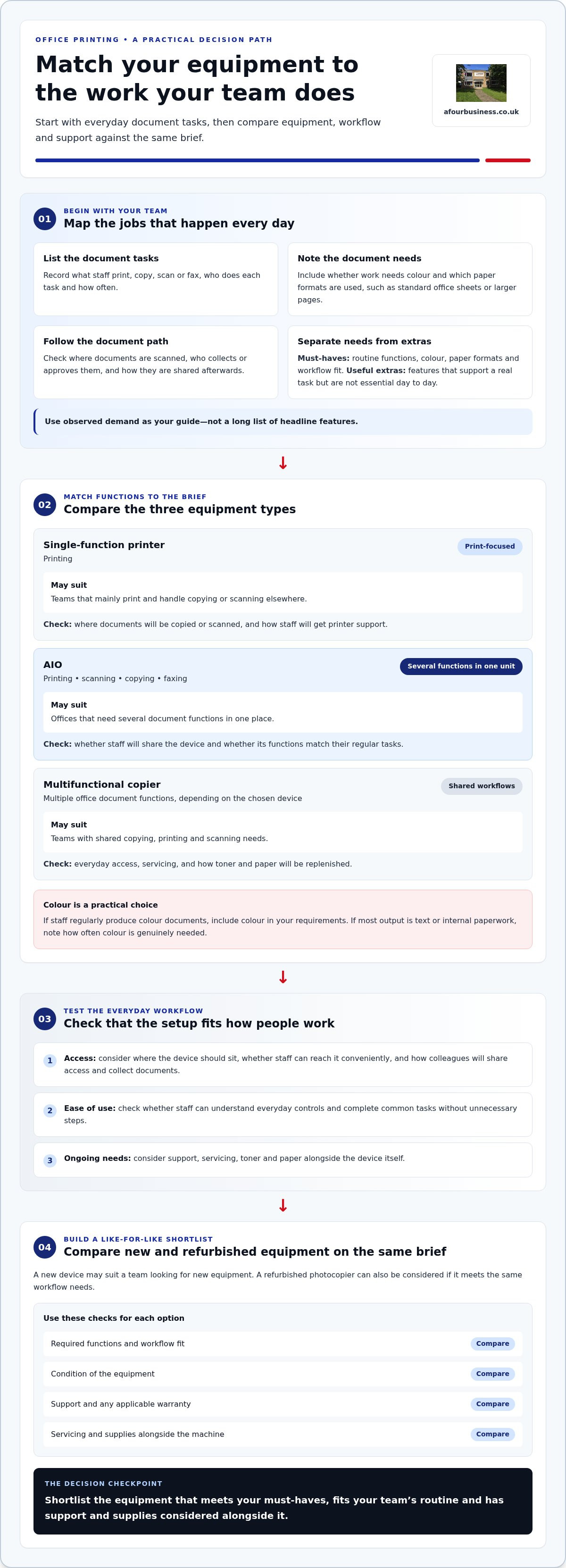
Before comparing printers or copiers, look at the jobs your team needs to complete. Staff may print reports, copy forms, scan invoices or fax documents if faxing remains part of a business process. Not every office needs all four functions. The right setup depends on who uses them, what they handle and how often.
An office printing solution is more than a device purchase: it brings together equipment, workflows, supplies and support to handle your business’s document tasks. This is the starting point for an office manager's guide to printing solutions. A machine may offer several functions, but it only fits if those functions suit your team’s routines. For background on the process behind many office print jobs, see Digital printing technology.
Which office printing tasks should you map first?
Build a simple picture of the work already happening. Ask teams which documents they print, copy, scan or fax, who handles each task and how often it occurs. Record whether documents need colour and which paper formats staff use, such as standard office sheets or larger pages.
Then follow the document’s path. Where do colleagues scan it? Who collects or approves it, and how is it shared afterwards? A team that regularly scans paperwork for colleagues may need a different setup from one that mainly prints documents for meetings. These details can help you decide where a device should sit and which functions staff need to access easily.
What makes an office printing setup fit for purpose?
Use observed demand to guide your shortlist rather than choosing equipment for headline features. Consider the regular mix of print, copy and scan tasks, how many people share the device, and whether its functions suit those jobs. A device intended for occasional use may not suit a busy shared workflow. Extra functions may add little value if no one needs them.
Ease of use matters too. Think about whether staff can reach the equipment conveniently, understand its everyday controls and complete common tasks without unnecessary steps. If teams work in different parts of the office, consider how they’ll share access and collect documents. These practical details can affect daily use as much as the device’s functions.
Finally, divide your requirements into two groups:
Must-haves: the functions, colour output, paper formats and workflow fit needed for routine work.
Useful extras: features that support a real task but aren’t essential to the office’s day-to-day needs.
This distinction keeps your comparison focused. You’ll have a clearer brief for assessing equipment, supplies and servicing in the next stage.
Compare office printing solution types by function, workflow and support
With your team’s tasks mapped, compare equipment by what it does and how it fits into daily work. This office manager's guide to printing solutions uses three broad options as a starting point. The right choice depends on your office’s actual print, copy, scan and fax needs, not a universal rule.
Colour is another practical decision. If staff produce colour documents regularly, include that in your requirements. If most output is text or internal paperwork, note how often colour is genuinely needed rather than treating it as an automatic must-have.
When is an AIO or multifunctional copier a sensible fit?
An AIO brings printing, scanning, copying and faxing together in one unit. A multifunctional copier can also suit a shared office where colleagues routinely handle several related document tasks. For example, staff may copy paperwork, scan it for sharing and print a working copy as part of the same process. The value depends on whether those jobs are part of your team’s regular routine. For more copier detail, see The Ultimate Guide to New Multifunctional Copiers.
How should you compare new and refurbished photocopiers?
Compare new and refurbished photocopiers against the same brief: required functions, condition and the support your office needs. A new device may suit a team looking for new equipment, while a refurbished photocopier can be worth considering if it meets the same workflow needs. Compare servicing and supplies alongside the machine, and include any applicable warranty in your assessment. The Benefits of High-Quality Used Photocopiers offers a fuller discussion of refurbished equipment.
Keep your shortlist grounded in the tasks you’ve recorded. If you’re weighing up equipment alongside servicing, toner and paper, explore business printing solutions as connected parts of the decision.
Use a practical checklist to assess office printing solutions
A consistent scorecard helps you compare options against the same everyday requirements, rather than being swayed by one appealing feature. In this office manager's guide to printing solutions, the aim is to assess how each option fits the whole office, from user access and document workflows to supplies and servicing.
Compare the complete set of office requirements, not isolated features, to find a printing solution that suits the way your team works. For each option on your shortlist, mark each item as a must-have, a useful extra or not needed. You can also note how well it meets the need, then compare the results side by side.
Which requirements belong on your printing comparison scorecard?
Record the expected users and the tasks they need to complete. Include print, copy and scan patterns, colour requirements and how documents are handled between colleagues. This gives you a practical basis for comparing suitable equipment.
Functions: Which everyday tasks must the device support?
Access: Who needs to use it, and where will it sit?
Workflow fit: How do documents move between scanning, approval, collection and sharing?
Supplies and service: How will toner and paper be replenished, and how will servicing and repair estimates fit into your plans?
Consider optional features only when they solve a real task. An intelligent media sensor may be relevant if staff regularly use different media types. A dualscan ADF may be worth considering if your team often scans two-sided documents. If neither reflects your office’s regular work, leave it off the must-have list. Avoid relying on claims about speed, capacity, security or compatibility that you haven’t established. Compare the information available against the needs you’ve recorded.
How do supplies and support affect the day-to-day choice?
Equipment needs supplies and servicing to remain useful in daily work. Decide who will order toner and paper, where supplies will be stored and who will notice when stocks need replenishing. Then consider how the office will arrange servicing and manage a repair estimate if a device needs attention. These responsibilities can affect how smoothly work continues, so include them in the comparison rather than treating them as an afterthought.
Once you’ve completed the scorecard, review the results with the colleagues who use the equipment. Check that each shortlisted option supports essential tasks and that someone is responsible for supplies and service arrangements. This shared review helps you settle on a practical choice and prepare a clear brief for the next stage.
Plan an office printing solution rollout around people and processes
A new device works best when the team knows how it fits into everyday routines. In this office manager's guide to printing solutions, rollout planning means preparing the people, supplies and processes around the equipment, not just deciding where it will sit.
Use a simple sequence to keep the change organised:
Confirm needs: Recheck the print, copy and scan tasks the equipment must support.
Agree equipment: Match the chosen device and functions to those requirements.
Prepare users: Share clear instructions for the tasks staff carry out most often.
Organise supplies: Plan where toner and paper will be kept and who will replenish them.
Review use: Gather feedback and refine guidance if staff run into avoidable snags.
What should an office manager prepare before delivery and installation?
Before delivery and installation, confirm the intended location, access arrangements and which teams will use the equipment. Gather the current print and scan requirements so the setup reflects real work, rather than assumptions. Have paper and toner arrangements ready, along with any agreed user guidance. This preparation helps staff understand where the device fits into their day from the outset.
How can you make a new printing workflow easier to adopt?
Keep staff guidance practical. Explain the everyday steps for printing, scanning and copying, and show users where to collect completed documents. Make sure everyone knows how to raise a service need or report an issue. Once the team has begun using the equipment, invite feedback and update instructions where people encounter repeated confusion or unnecessary steps.
Simple guidance can make a difference. For example, a short internal note could explain how to send a document to print, where to find it, and who to tell if a task doesn’t work as expected. Keep the instructions easy to find, and update them if the agreed workflow changes. Staff will then have a clear reference instead of relying on informal handovers.
Reviewing use also helps you spot whether the original requirements still match the team’s work. If staff regularly need a function that wasn’t included in the initial plan, or a process is causing delays, record the issue and consider what adjustment would help. The aim is a workable routine that supports the office’s actual needs.
For a considered discussion about your requirements, discuss a printing setup for your office.
Choose an office printing solution with A Four Business Equipment Ltd
Once you’ve assessed your tasks and compared the options, bring equipment, servicing and supplies into one practical discussion. A Four Business Equipment Ltd provides new multifunctional copiers, refurbished photocopiers, photocopier servicing, toner and paper for businesses. The aim is to match those parts to the work your office needs to get done.
What can A Four Business Equipment Ltd include in a business printing solution?
Start with your office’s document tasks, the people using the equipment and the way work moves through your team. New multifunctional copiers and refurbished photocopiers can be matched to those needs, alongside photocopier servicing and supplies to support everyday work.
Models such as the Ineo+ 450i, Ineo 227, Ineo 750i and Ineo 4700i are examples to discuss as part of a suitable shortlist. Their names alone don’t determine the right fit; your print, copy and scanning tasks should guide the comparison. A Four Business Equipment Ltd has been in business since 1988 and provides a 12 month warranty. There is also No call out charge for repair estimates.
Everyday office continuity depends on choosing a suitable device, having dependable servicing and keeping essential supplies well managed. Consider these together to plan for the equipment’s ongoing role in your office, rather than treating the purchase as a decision in isolation.
What should you bring to a printing solution discussion?
A few practical details will make the conversation more useful. Bring examples of the documents your team handles, note which need colour and describe the scanning tasks staff carry out. It also helps to explain who shares the equipment, how often it’s used and where documents go after printing or scanning.
List the equipment your office currently uses and the tasks it handles.
Note any recurring frustrations, such as awkward document hand-offs or unclear supply routines.
Describe which teams need access and what they need to do at the device.
Separate essential functions from features that would be useful but aren’t necessary.
This gives you a clear starting point for a tailored conversation, without getting distracted by features that don’t support your team’s work. You can talk through new or refurbished equipment and the related servicing, toner and paper needs in the context of your office’s requirements.
Ready to take the next step? Talk through your office printing requirements with A Four Business Equipment Ltd.
Make your shortlist the starting point
A suitable office printing setup begins with your team’s real work. Map the printing, copying and scanning tasks you handle, then compare devices by their functions, workflow fit and support needs. Keep must-haves separate from optional features, and plan for toner, paper and servicing alongside the equipment.
This office manager's guide to printing solutions is designed to help you move from a broad set of choices to a practical shortlist. A Four Business Equipment Ltd brings business equipment, photocopier servicing, toner and paper together from one supplier. The company has been in business since 1988, offers a 12 month warranty, and provides No call out charge for repair estimates.
Bring your shortlist, routine document examples and notes on how colleagues share equipment to a conversation about your office’s requirements. Talk through your office printing requirements with A Four Business Equipment Ltd to discuss equipment, servicing and supplies for your team.
Frequently Asked Questions
What is an office printing solution?
An office printing solution brings together equipment, everyday workflows, supplies and support to handle business document tasks. It might include a printer for teams that mainly print, or a multifunctional copier for offices that also copy and scan regularly. Think about how documents move through your team, who uses the equipment and how toner, paper and servicing will be managed. Those details help make the setup useful beyond the initial purchase.
How do I choose the right printer or copier for my office?
Start by listing who uses the equipment, what they print, copy and scan, and how often those tasks happen. Note colour needs, paper formats and how documents are shared or approved. Then compare equipment by its functions, ease of use, workflow fit, supplies and servicing. This office manager's guide to printing solutions recommends separating essential requirements from optional features, so your shortlist reflects the work your team actually does.
Is an AIO the same as a multifunctional copier?
An AIO is an All-in-One device that combines printing, scanning, copying and faxing in one unit. A multifunctional copier also brings several document functions together, though the exact combination can vary by device. The terms can overlap, so compare the functions rather than relying on the label. If your team rarely faxes, for example, focus on the print, copy and scan tasks it needs to complete routinely.
Should a business choose new or refurbished photocopiers?
Compare new and refurbished photocopiers against the same practical needs: required functions, condition, support and fit with daily workflows. A refurbished option may suit a business open to previously used equipment, while a new machine may match a preference for new hardware. In either case, consider servicing and supplies alongside the device, and include the warranty arrangements in your assessment.
How can an office reduce printing waste?
Begin by checking which documents genuinely need a printed copy. Share routine documents digitally where that suits your process, use print previews to catch layout errors and avoid printing duplicate copies. Choose black-and-white output when colour isn’t needed, and use double-sided printing if the device and document are suited to it. Clear team guidance on these habits can help make printing more deliberate without disrupting essential work.
How can we keep an office copier reliable?
Support reliability with clear routines: keep suitable paper and toner available, make sure staff know how to report faults and arrange photocopier servicing when needed. Follow the device’s operating guidance and avoid asking it to handle tasks beyond its intended use. It also helps to record recurring problems, so you can describe what happened when arranging service. A Four Business Equipment Ltd provides photocopier service, with no call out charge for repair estimates.
What should an office manager prepare before installing new printing equipment?
Before delivery and installation, confirm where the equipment will go, which teams will use it and how staff will access it. Gather examples of routine print and scan tasks, colour needs and shared workflows so the setup reflects actual work. Arrange paper and toner, and prepare short instructions for printing, copying, scanning and reporting issues. This gives colleagues a clear starting point and helps the change fit into existing office routines.


Comments